
20 Hidden Windows Features You Should Start Using Today
Discover 20 powerful Windows features most users never notice — hidden tools that can boost your productivity, improve performance, and make everyday tasks easier.


Introduction
Windows 10 and Windows 11 contain many powerful features that most users never discover. They are hidden deep in the system, disabled by default, or simply undocumented. These are not basic shortcuts — these are tools that can genuinely improve your productivity, security, and daily workflow.
Below you’ll find 20 truly useful hidden Windows features that most people don’t use — but absolutely should.
Before We Begin (For Less Experienced Users)
If you’re new to Windows shortcuts, one thing you’ll see mentioned a lot in this article is the Win key.
The Win key (also called the Windows key) is the button on your keyboard with the Windows logo on it. It is usually located between Ctrl and Alt.
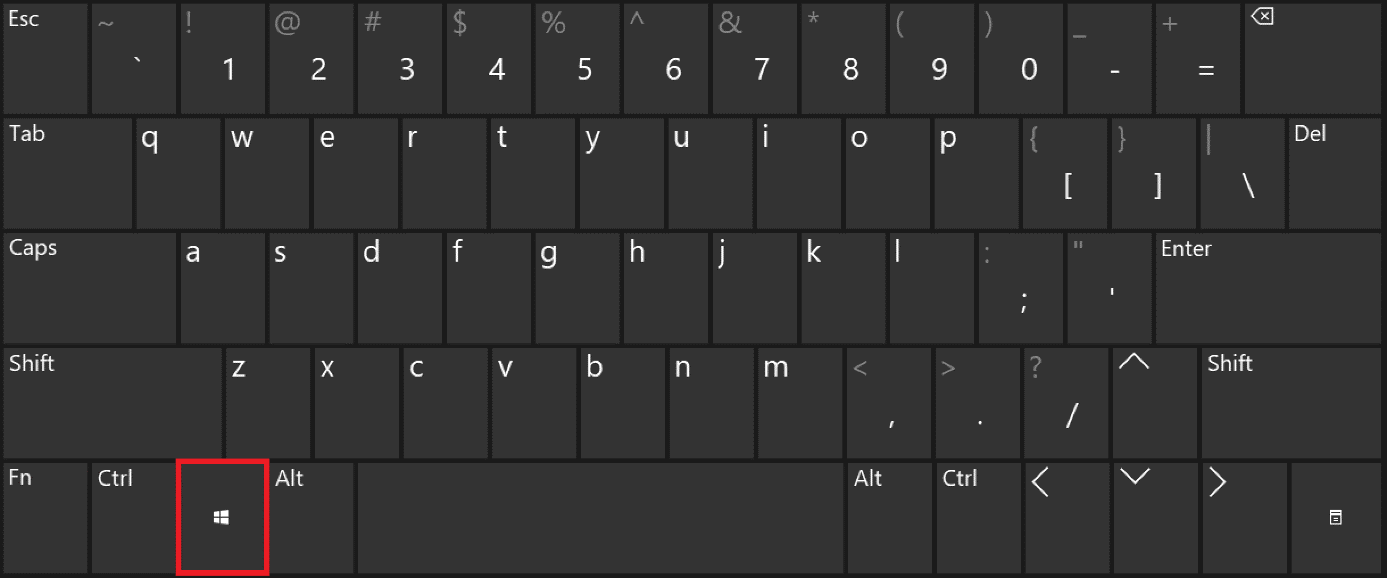
It is used in many keyboard shortcuts throughout this guide.
1. Clipboard History
Most people only use Ctrl + C and Ctrl + V. Windows has a built-in clipboard manager.
Shortcut:
Win + V
You can:
- View previously copied items
- Reuse older text snippets
- Pin important clipboard items
2. Virtual Desktops
Create multiple independent desktops for different tasks.
Shortcut:
Win + Tab
Use cases:
- Work vs personal separation
- Project-based desktops
- Cleaner workspace
3. Snap Layouts (Windows 11)
Advanced window snapping layouts.
Shortcut:
Win + Z
Perfect for multitasking on large screens.
4. God Mode
A hidden folder that contains hundreds of system settings in one place.
Create a new folder and rename it to:
GodMode.{ED7BA470-8E54-465E-825C-99712043E01C}
5. Windows Sandbox (Pro/Enterprise)
Run an isolated copy of Windows inside your system.
Use it to:
- Test unknown software
- Open suspicious files
- Avoid malware risks
Enable via:
OptionalFeatures.exe
6. Focus Assist
Blocks notifications while you work.
Location:
Settings → System → Focus Assist
7. Advanced Screenshot Tool
Most people use Print Screen. Windows has a better one.
Shortcut:
Win + Shift + S
8. Power User Menu
Hidden admin tools menu.
Shortcut:
Win + X
Includes:
- Device Manager
- Disk Management
- Event Viewer
- Terminal
9. Hidden Emoji & Symbol Picker
Insert emojis, symbols, and kaomoji anywhere.
Shortcut:
Win + .
10. File Explorer: Copy Full Path
Hold Shift → Right-click a file → Copy as path
Extremely useful for scripts and CMD.
11. Storage Sense
Automatically cleans temporary files.
Settings → System → Storage → Storage Sense
12. Startup App Control
Disable apps that slow down Windows startup.
Shortcut:
Ctrl + Shift + Esc
Go to Startup tab.
13. Nearby Sharing
Share files between PCs without USB sticks.
Settings → System → Nearby sharing
14. Shake to Minimize (Aero Shake)
Grab a window and shake it to minimize others.
15. Reliability Monitor
Hidden system stability dashboard.
Open via:
reliability
Shows:
- App crashes
- Windows errors
- Driver failures
16. File History (Built-in Backup)
Automatic file versioning.
Settings → Update & Security → Backup
17. Dynamic Lock
Automatically locks your PC when you walk away.
Settings → Accounts → Sign-in options
18. Secret Advanced Power Settings
Open advanced power management.
Run:
powercfg.cpl
19. Quick Access Hidden Context Menu
Windows 11 hides the classic context menu.
Use:
Shift + Right-click
20. Built-in Reset Without USB
Reinstall Windows without external media.
Settings → System → Recovery → Reset this PC
Conclusion
Windows hides a surprising number of powerful tools in plain sight. Most users never use them simply because they don’t know they exist.
If you start using even a few of these hidden features, your daily Windows experience will become faster, cleaner, and more efficient.